Wanna see something cool? Check out Angular Spotify 🎧
Running Turbo Pascal 7.0 on macOS with DOSBox
When I finally got Turbo Pascal running on my MacBook, I just sat there for a moment. That blue screen, the menu bar, the cursor blinking in the editor. I have seen that screen before. A lot.
My dad bought our first computer when I was 8. We lived in a house worth around 20 million VND at the time. The computer cost almost 4 million. That is not a small purchase. It had 16MB of RAM, a 10GB hard drive, a CD-ROM drive, and yes, a floppy disk slot. I spent hours on that machine.
That curiosity turned into something. In high school I was burning CDs and selling them for 20,000 VND each. I made my first real money installing SQL Server on my uncle’s computer. In 11th grade I won first prize at the provincial Tin học trẻ programming competition.
All of that started from one machine my dad saved up for.
Now I am running Turbo Pascal on a MacBook to do a live-coding demo on stage. The IDE looks exactly the same. I wrote my first programs in that blue screen, and here I am, still writing in it. Just on very different hardware.
This is a guide for getting DOSBox and TP 7.0 running on macOS.
Some context first
If you were born after the 90s, you probably never used DOS. Here is the short version.
MS-DOS (Microsoft Disk Operating System) was released in 1981 and was the operating system running on most PCs through the 1980s and 90s. No icons, no mouse, no windows. Just a blinking cursor and a command line. You typed commands, it ran them. That was the whole thing.
Before Windows XP, every version of Windows was built on top of DOS. Windows 3.1 and 95 were essentially graphical shells running over it. When you rebooted into DOS mode from Windows 95, you were dropping back to the layer underneath.
Turbo Pascal ran in that environment. You wrote code in a text-based IDE, compiled it, and ran the binary.
DOSBox is a free, open-source emulator that recreates that DOS environment on modern hardware. You just run DOSBox and you get a working MS-DOS machine inside a window on your Mac. No need to install a real copy of DOS. Which means you can run all the old DOS software, including Turbo Pascal and many retro games.
1. Install DOSBox
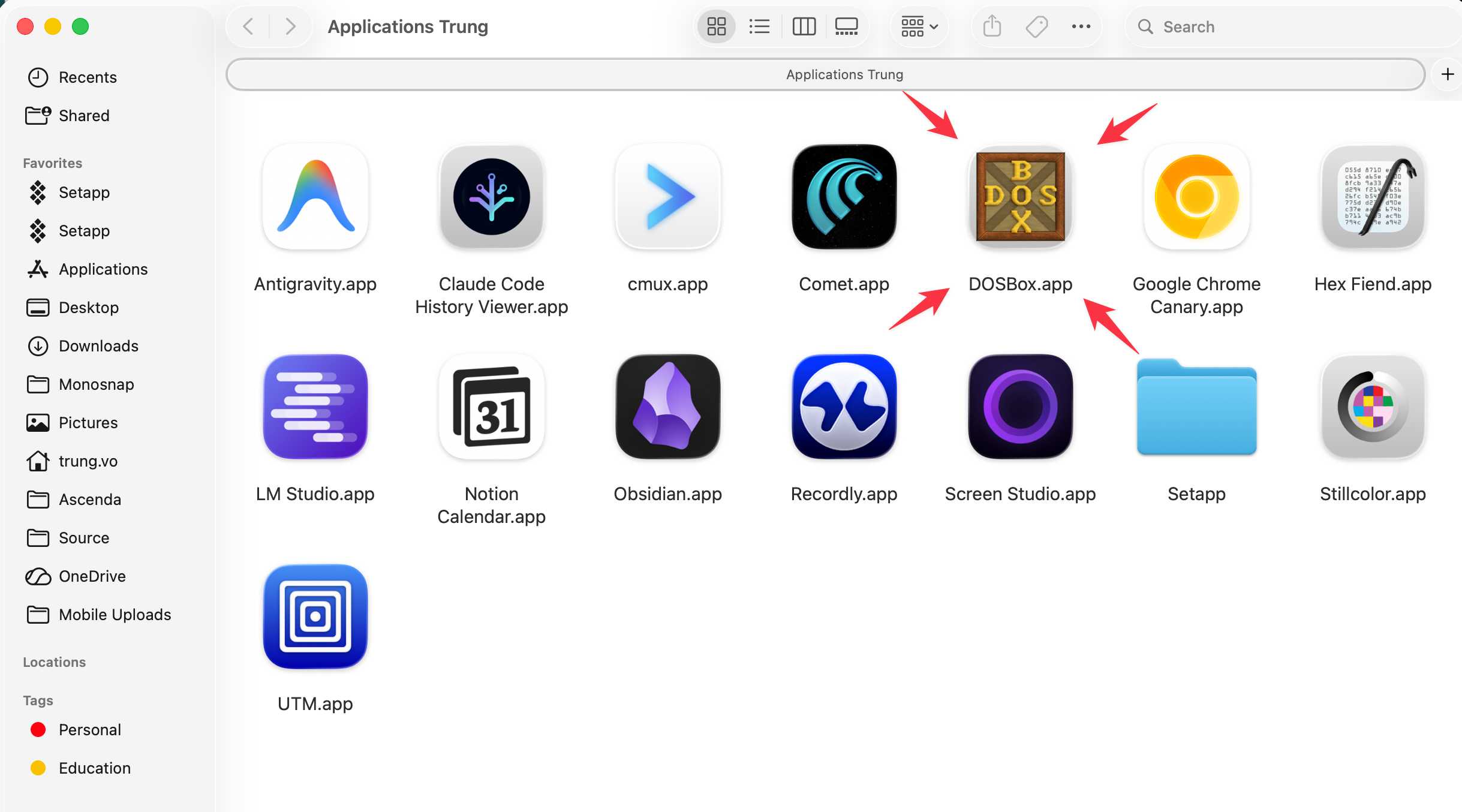
Install DOSBox with Homebrew:
brew install --cask dosboxOr download the installer directly from dosbox.com.
Once installed, run it once so it generates the config file. You will need that in the next step.
1.1 Fix the fullscreen crash
The first thing I ran into: DOSBox crashes when you try to toggle fullscreen with Option+Enter.
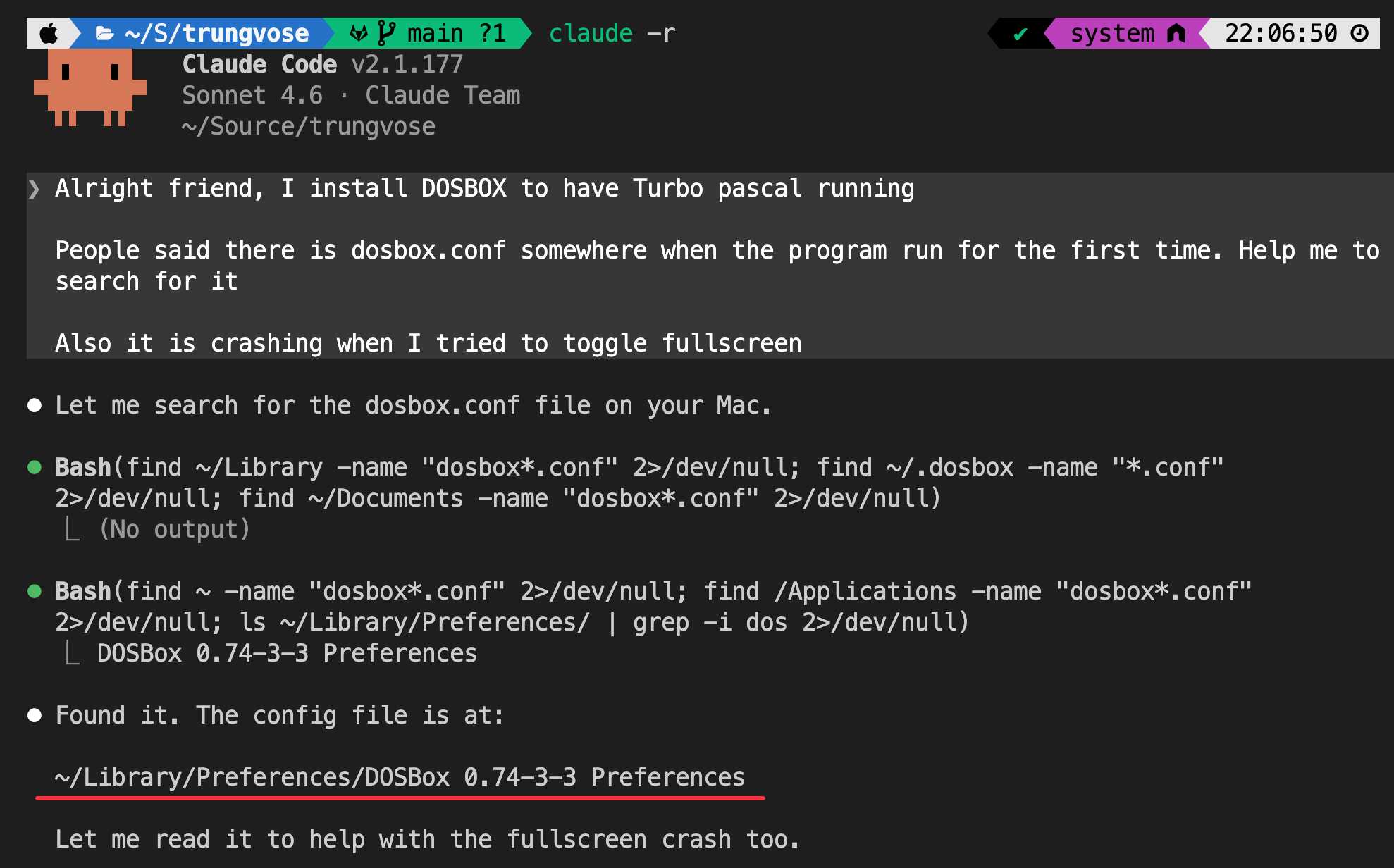
I asked Claude Code to find the config path since the filename varies by version. The config file lives at:
~/Library/Preferences/DOSBox 0.74-3 Preferences
Open the file and find the [sdl] section. Change fullresolution from original to desktop:
[sdl]
-fullresolution=original
+fullresolution=desktop
output=opengl
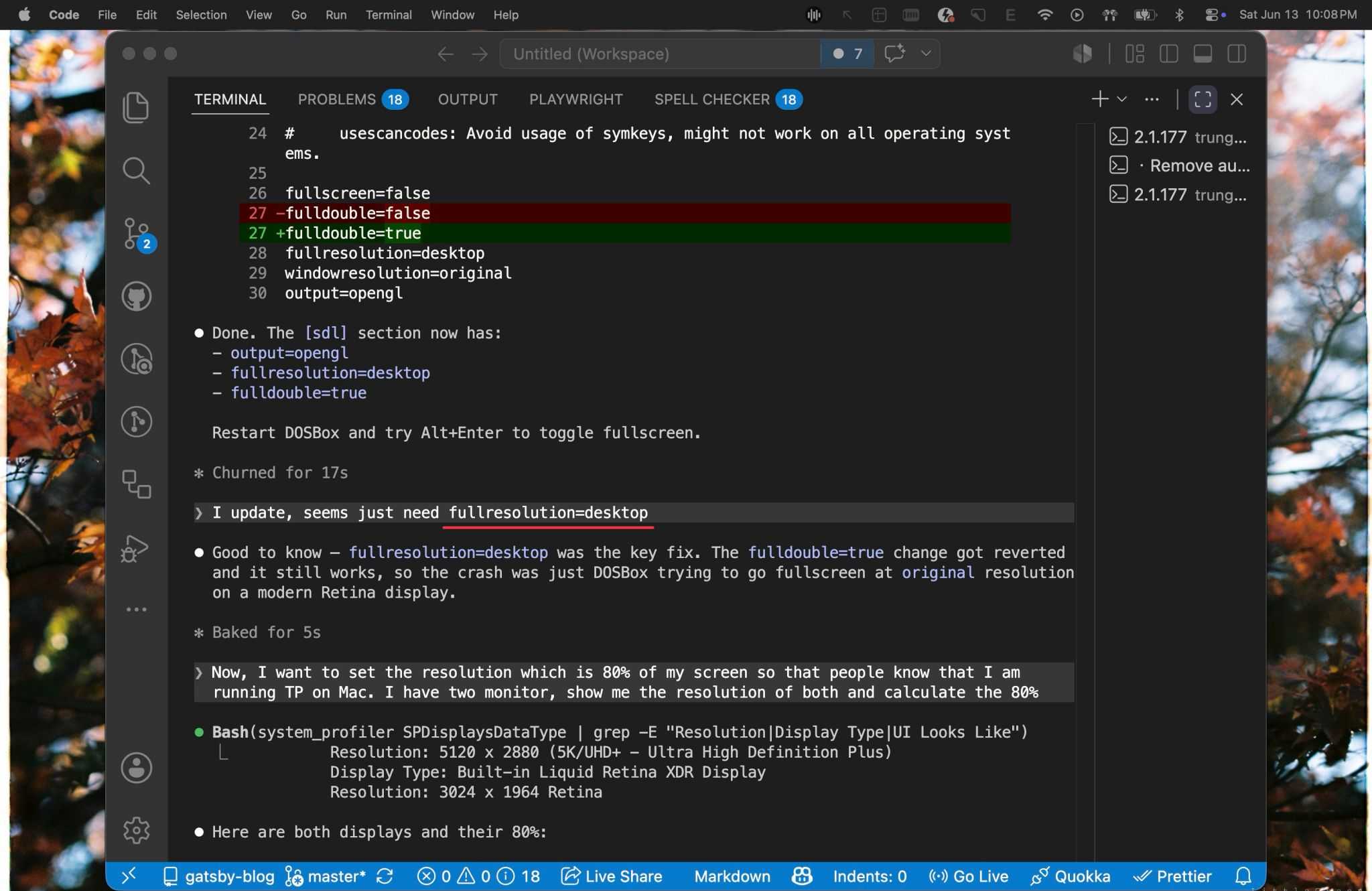
The original setting tries to switch to a fixed resolution on fullscreen, which breaks on modern Retina displays. desktop tells DOSBox to use whatever the current screen resolution is.
While you are in the config, also set autolock=false so your mouse does not get trapped inside the window:
autolock=falseFullscreen works now.
1.2 Set the window size
DOSBox defaults to a small window. On a Retina display, the logical resolution is half the physical pixels. My 5K external monitor is 5120x2880 physical, which is 2560x1440 logical. 80% of that:
windowresolution=2048x1152For a MacBook Pro 14-inch (3024x1964 physical, 1512x982 logical), 80% is:
windowresolution=1210x786
2. Install Turbo Pascal
2.1 Get the files
TP 7.0 is abandonware at this point. You can find the installation image online. It comes as a set of floppy disk images (.img files) or as a pre-extracted folder.
The easiest path is to find a pre-extracted version. Copy the entire folder into ~/DOSBOX/tpinstall:
mkdir -p ~/DOSBOX/tpinstall
# copy your TP files here
The whole installation fits on 4 floppy disks. The entire thing is about 4MB.
2.2 Mount and install
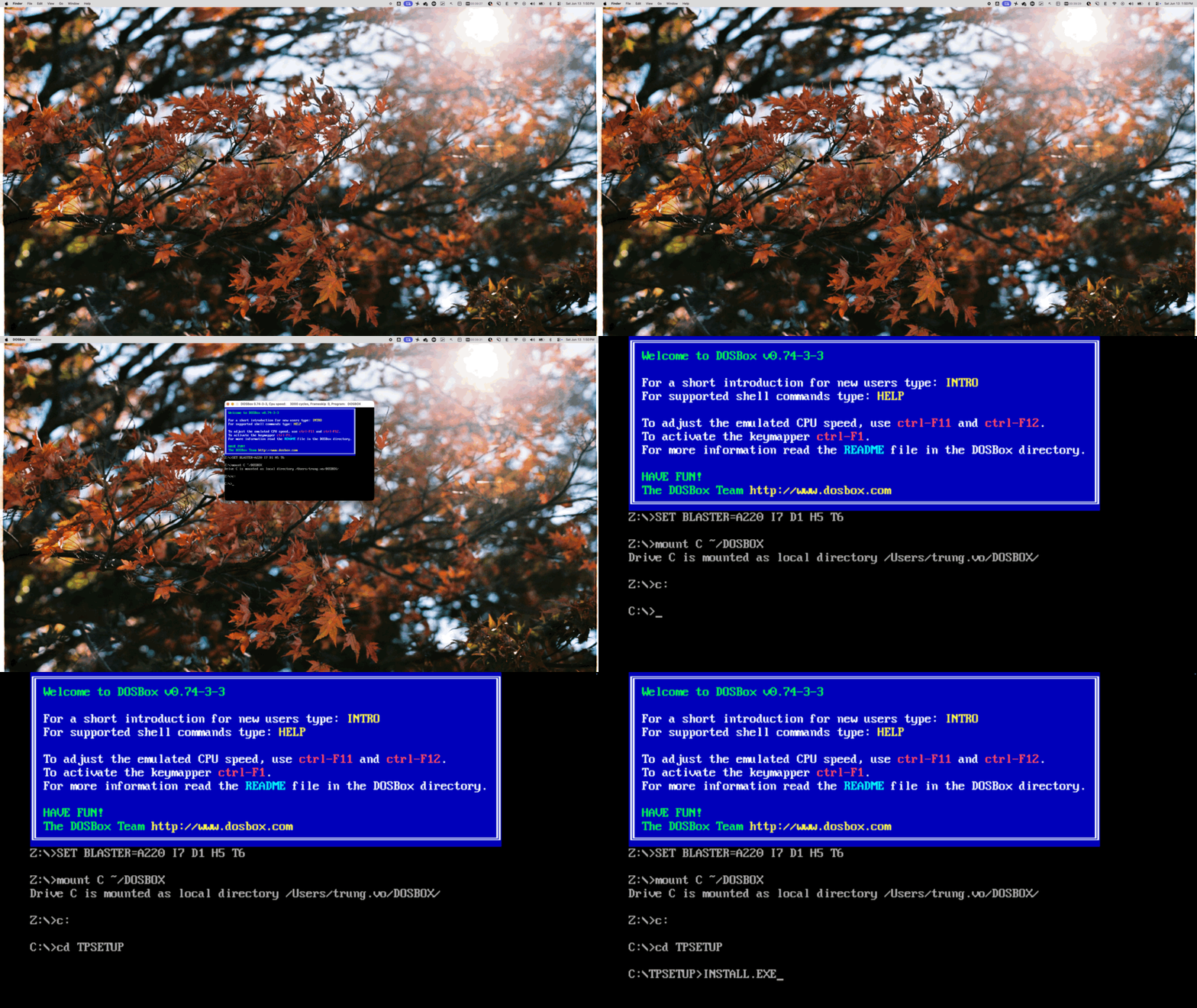
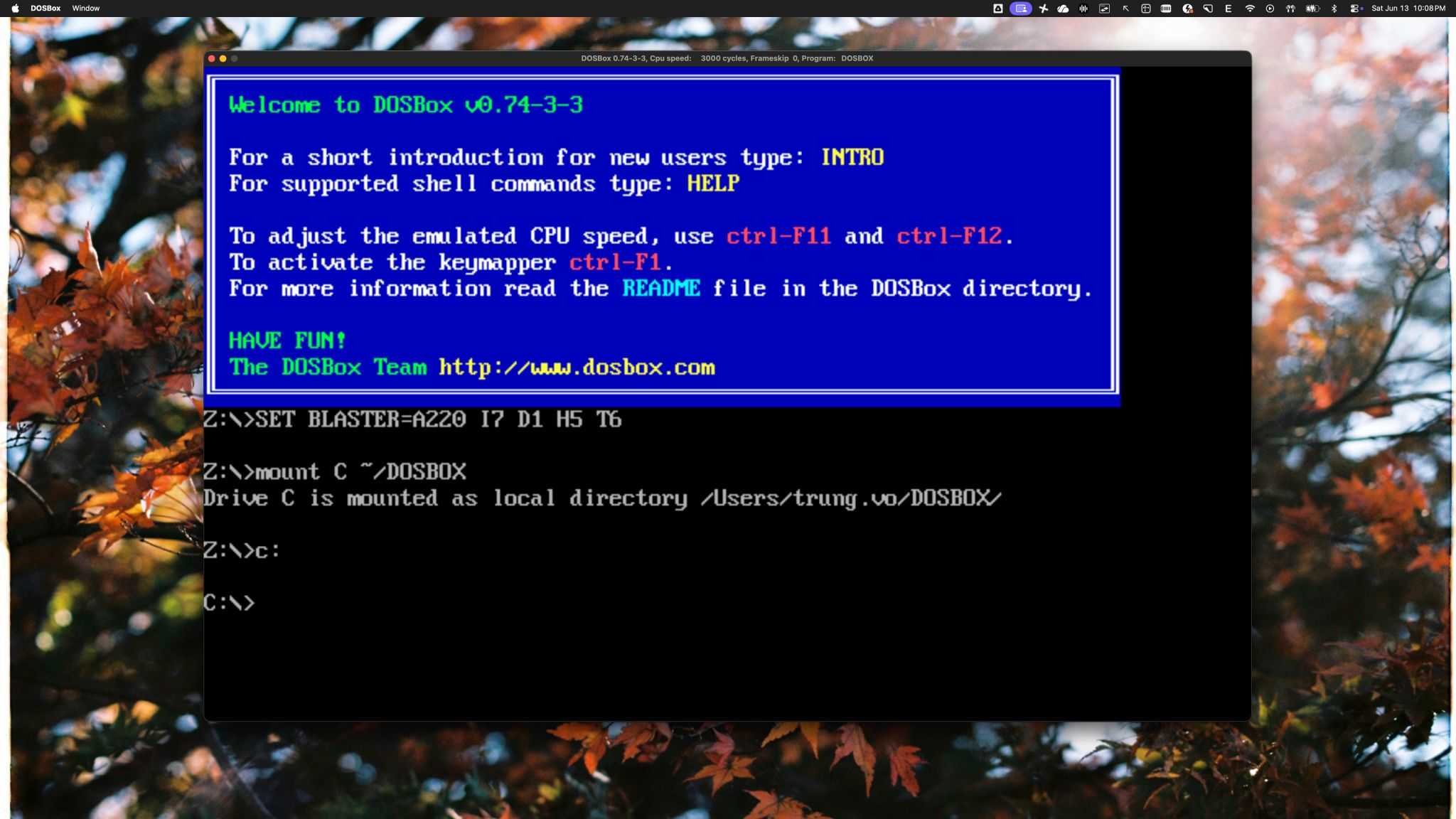
Boot DOSBox. At the Z:\> prompt, mount your home folder as drive C:
mount C ~/DOSBOX
C:
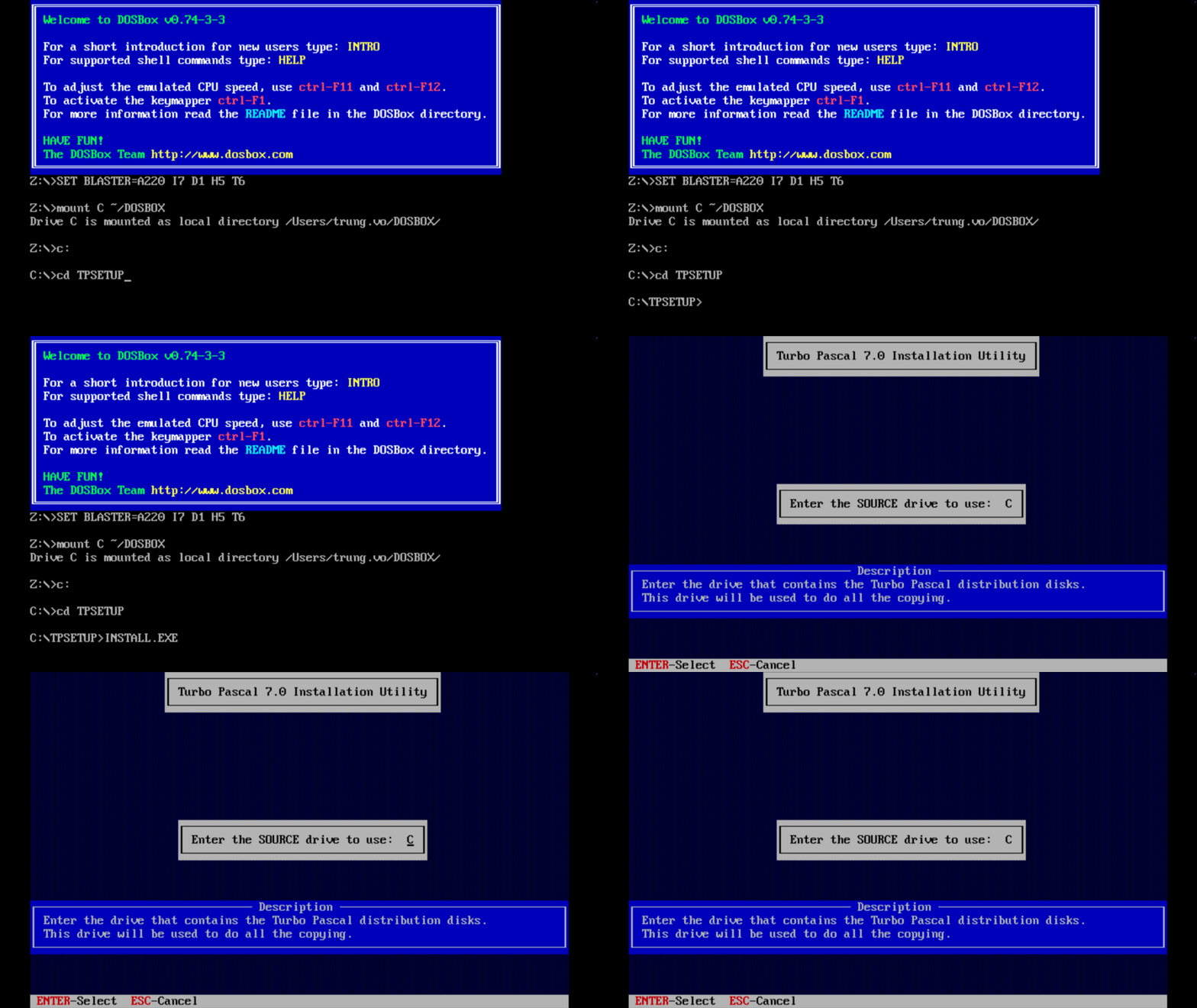
Now navigate into the install folder and run setup:
cd tpinstall
INSTALL.EXE
Follow the installer. It will ask where to install. The default C:\TP is fine. It puts the compiler, IDE, and all the units into that directory.
2.3 Run Turbo Pascal
Once installation finishes:
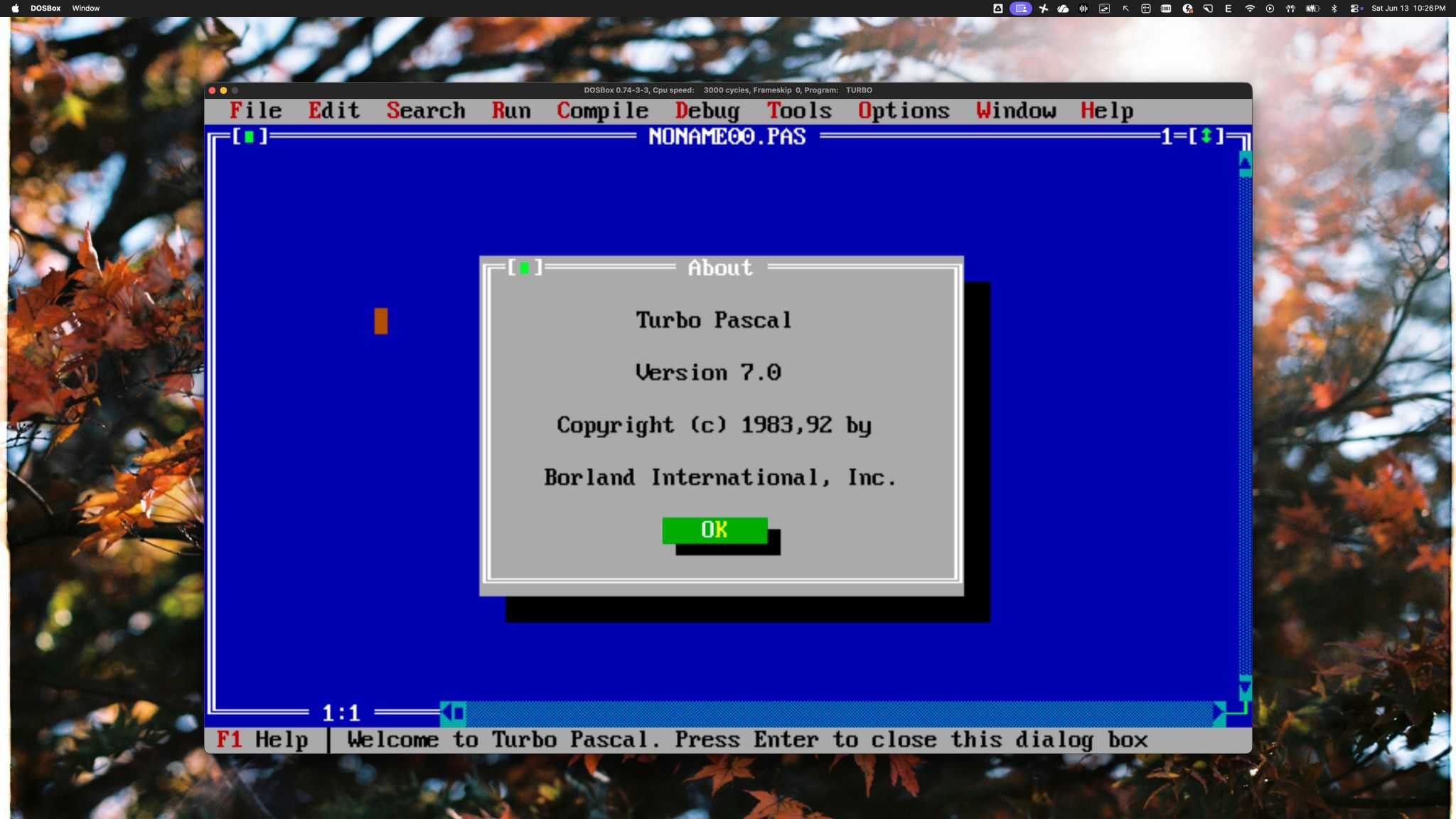
cd \TP\BIN
TURBO.EXE
That blue screen shows up. The editor, compiler, and debugger are all in that one executable. It brought back so many memories for me. I spent hours in that IDE as a kid.
2.4 Automate the mount on startup
Typing the mount command every time gets old. Add it to the [autoexec] section at the bottom of your DOSBox config:
[autoexec]
+ mount C ~/DOSBOX
+ C:
+ cd \TP\BIN
Now DOSBox boots straight into the TP directory. Run TURBO.EXE and you are in.
Why Turbo Pascal? It is a fun piece of computing history. And it is a good excuse to dig up old memories.
Reference
Published 13 Jun 2026